You can change the Google Docs default styles so every new document starts with your preferred fonts and headings. The method is to format a paragraph the way you want, update its style to match, then save the result as your default styles. This guide shows the steps for text, headings and spacing, and explains how to reset everything if you change your mind.
Key takeaways
- Update a style from a formatted paragraph, then save it as your default styles.
- New documents use your defaults; older ones do not change automatically.
- Page setup, such as margins and page size, has its own default option.
- Menus can change, so check the help page if a label looks different.
Why Change Google Docs Default Styles
A new Google Doc normally starts with Normal text in a standard font and size, plus built-in heading styles. That is fine for a quick note, but many people end up reformatting every document: a different font for body text, tighter spacing, a specific heading color for a company or school template.
Setting your own defaults removes that repeated work. It also keeps documents consistent, which matters for reports and shared files. The idea builds on paragraph styles, explained in our guide to Google Docs heading styles and the document outline.
Step 1: Format the Text the Way You Want
- Type a sample line of body text and select it.
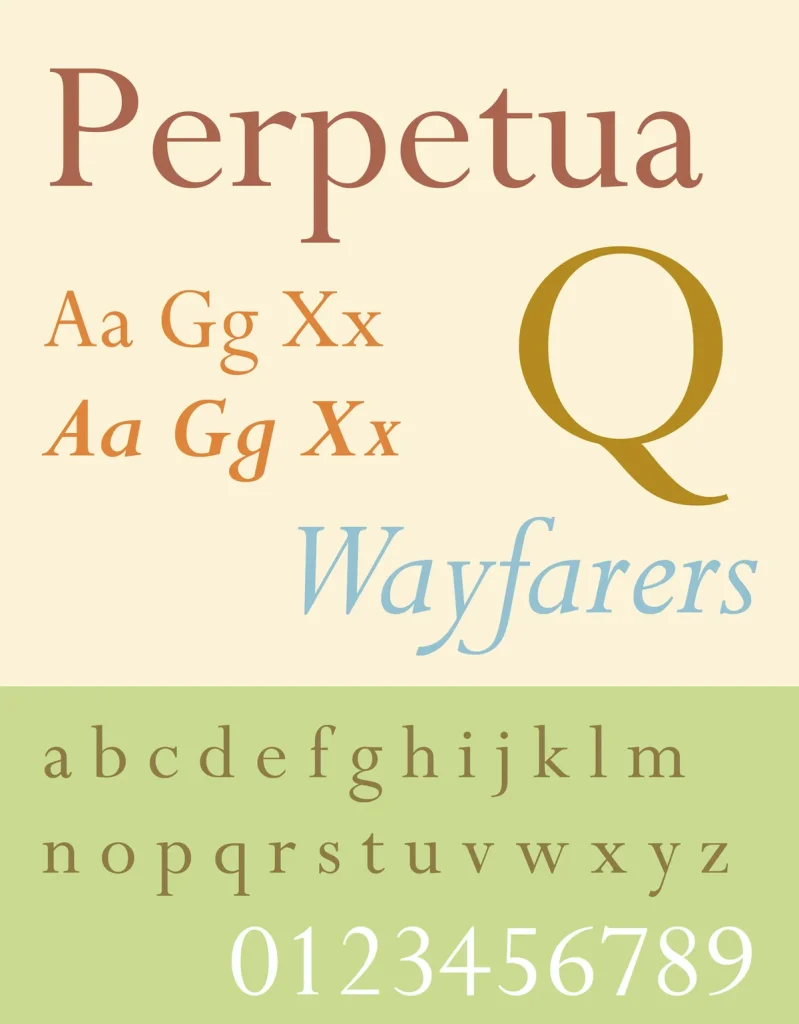
- Choose the font from the font dropdown in the toolbar. Use More fonts if you want to add one that is not listed.
- Set the font size, color and alignment.
- Open Format > Line & paragraph spacing and adjust line spacing or spacing before and after paragraphs. Custom spacing is available there too.
Do the same for a heading if you want to restyle it. Type a heading line, apply Heading 1, and change its font, size and color.
Step 2: Update the Style to Match
Now tell Docs that this formatting is the new definition of the style.
- Keep the cursor in the formatted paragraph.
- Open Format > Paragraph styles.
- Hover over the matching style, such as Normal text or Heading 1.
- Choose the option to update that style to match your selection.
All text in the current document that uses the style changes immediately. Repeat for each style you want to alter. A typical set is Normal text, Title, Heading 1, Heading 2 and Heading 3.
Step 3: Save as Your Default Styles
Updating a style affects only the current document. To make it the default:
- Open Format > Paragraph styles.
- Choose Options at the bottom of the submenu.
- Select Save as my default styles.
New documents you create after this use those styles. Google describes related formatting tools in its help center, Add a title, heading, or table of contents in a document, and menu wording can change, so use the official pages to confirm.

Apply Your Google Docs Default Styles to an Existing Document
Older documents keep their original styles. In the same Options submenu there is typically a command to use your default styles, which applies your saved set to the current file. Try it on a copy first, since it can change the look of a document that someone else formatted. If a file is shared, see how to share a Google Doc and control permissions before making wide formatting changes.
Change the Default Page Setup
Fonts and styles are one part of the picture. Page size, orientation, margins and page color live under File > Page setup. After choosing your values, use the Set as default button in that dialog so new documents start with them.
| Setting | Where to change it | How to make it the default |
|---|---|---|
| Font, heading styles, spacing | Format > Paragraph styles | Options > Save as my default styles |
| Margins, page size, orientation | File > Page setup | Set as default button |
Reset to the Original Styles
If you want to go back, open Format > Paragraph styles > Options and choose the reset option for styles. This restores the standard set. You can then save those as your default again if you want the original look in new documents.
Tips for Choosing Fonts
Good defaults are worth a few minutes of thought, because you will see them every day.
- Pick one font family for body text and at most one more for headings.
- Use readable sizes for the body. Many people choose 11 or 12 points, though the best size depends on your audience.
- Check how the font looks when exported to PDF or Word, since fonts missing on another computer may be replaced. See typeface basics on Wikipedia if you want background on font families.
Frequently Asked Questions
Will changing my defaults alter existing documents?
No. Saved defaults apply to new documents, unless you choose to apply them to an existing one.
Can I use any font?
You can use the fonts available in the font menu, including ones added with More fonts. Fonts may display differently outside Google Docs.
Does this work on mobile?
Mobile apps display your formatting, but setting default styles is done from the desktop editor.
Is there a team-wide default?
Defaults are personal. For consistent team documents, share a template document and make copies from it.
How do I change only one document?
Update the style as in Step 2 and skip the Save as my default styles step.
Wrap-Up
Format once, update the style, save your defaults and set the page defaults. New documents then start the way you like, and the reset option is there if you need it.